|
|
 |
|
|
SUPPORT
> E-Mail
> NetScape 7 Tutorial
Return to Support
How to configure NetScape to get your E-mail
- If you want to configure the mail in NetScape, you will need to get to
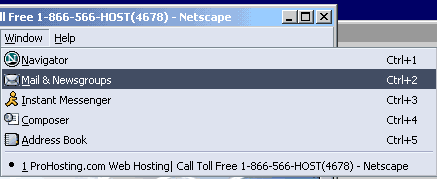
the Mail & newsgroups settings. Use the keyboard shortcut
CTRL+2 to switch to Mail & Newsgroups.
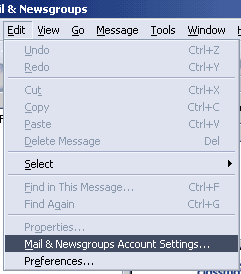
- Click on Edit, and then Mail & Newsgroups
Account Settings.
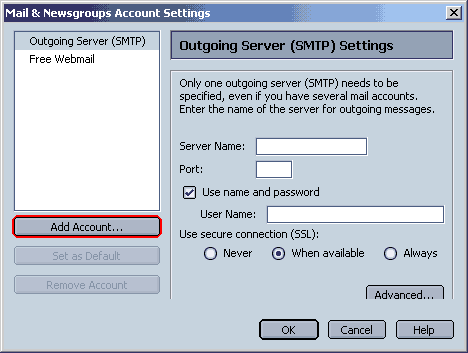
- We want to add a new account, so click Add Account.
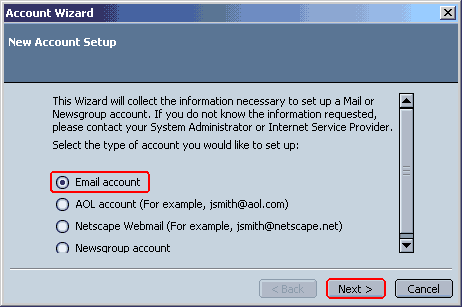
- ProHosting's servers provide POP3 E-mail accounts, so choose "Email
account" and click Next.
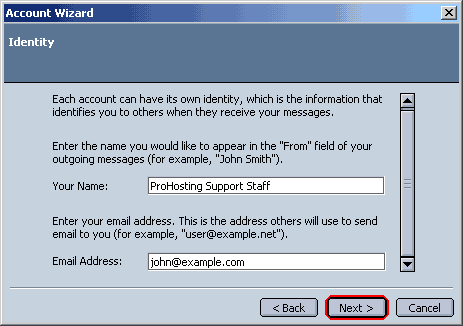
- In the next window, "Your Name" should be the name or title you
want to appear on your outgoing mails.
- Your e-mail address is the address you want to check, like your_email@your_domain.com.
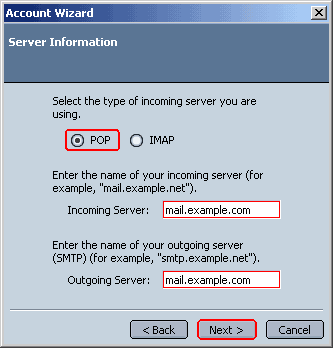
- Enter the incoming and outgoing mail servers.
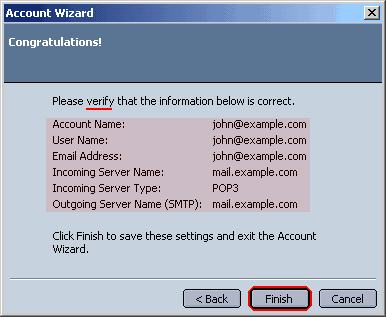
- Your Incoming Server is always mail.your_domain.com
- The Outgoing Server can be mail.your_domain.com
if your ISP allows outside (third party)
mail servers.
- If they do not allow other mail servers to be used when sending
outgoing mail, you will have to call or e-mail them and find
out what their provided outgoing mail server address is
(like smtp.your_isp.com or mail.your_isp.com), whether
it requires a username and password, and any other information
to connect to it and send mail.
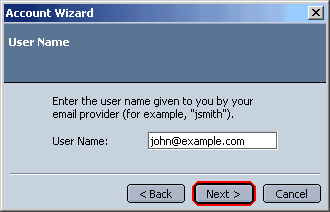
- The username is the entire e-mail address, for example.com: john@example.com.
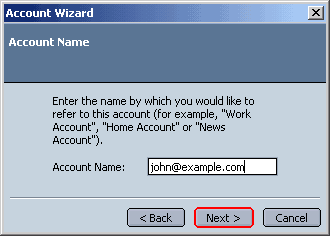
- The Account name in NetScape is anything you want it to be, it's just the
thing that will distinguish it from other accounts you set up in NetScape.
- Verify your settings, and try to check your mail! CTRL+T
is the shortcut key for NetScape
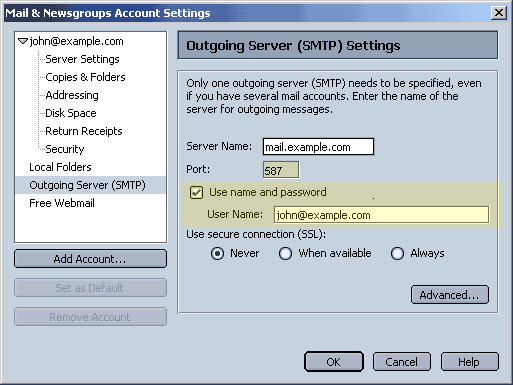
- Click on the "Outgoing Server (SMTP)" on the
left window. Check the box, and enter your e-mail address as the User
Name.
Example: john_doe@example.com
Many ISPs block the default Outgoing SMTP port (25) on domains other than
their own. To avoid this difficulty, we highly recommend using port 587 for your Outgoing Mail.
|
ProHosting has hosted over 2,123,705 web sites since 1996!
|
|
|
|
|
|
|

