|
|
 |
|
|
SUPPORT
> E-Mail
> Outlook Express Tutorial
Return to Support
How to configure Outlook Express to get your E-mail via a POP connection
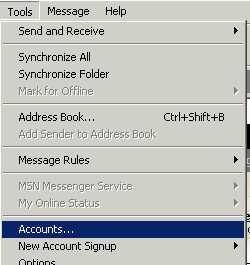
- Open Outlook express, click on the Tools menu, then "Accounts..."
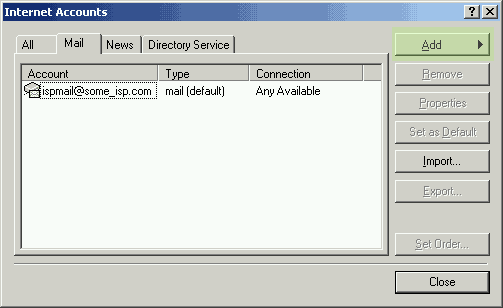
- This will bring up the Internet accounts window.
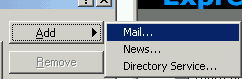
- Because we will be adding a new Mail account, we click Add >>
Mail
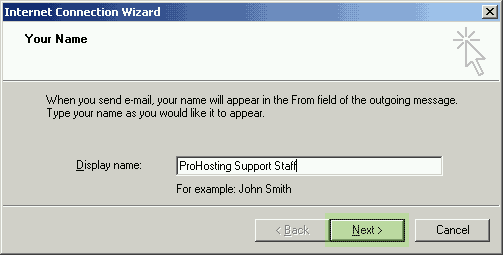
- In the first window, enter your Full Name in the "Display
Name" field as you wish it to appear on your outgoing mails.
Click Next to proceed.
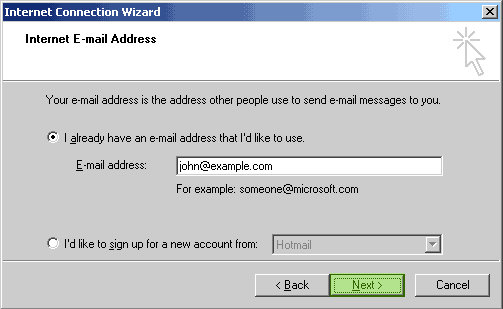
- Enter your full e-mail address, i.e. john@example.com
and click Next.
- These instructions are for setting up the email client to connect to our mail server using a POP3
connection. To obtain the recommended settings for your hosting account, login to the Netadmin control panel
here, then click on the Email Setup Info link in the Email section.
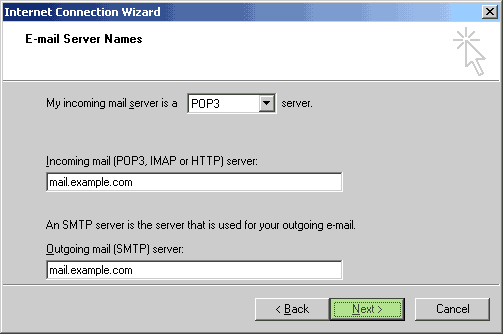
You will need to locate the Incoming & Outgoing Mail Servers.
- Enter the mail servers, and be sure to spell
the server name exactly correctly for both the incoming
and outgoing mail servers.
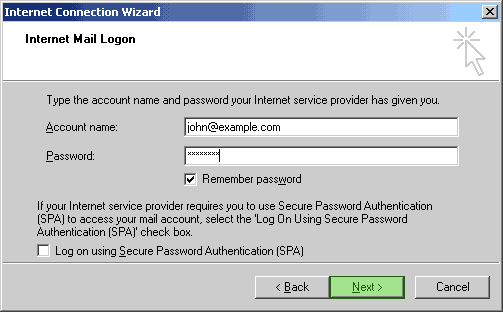
- The Account name is the entire e-mail address, like john@example.com
.
- enter the password for the e-mail account, which you set up in NetAdmin.
- Once you have entered all of the information correctly, you are congratulated,
and can check your mail.
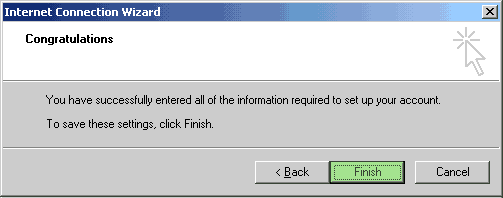
- You have now successfully created your mail account, and should be able
to check it. The default shortcut key for this is CTRL+M,
or you can check it from the Send/Recv button in the toolbar on
the top.

- ProHosting requires SMTP authentication to send mail. You must check
a box to use Authentication. The instructions are below:
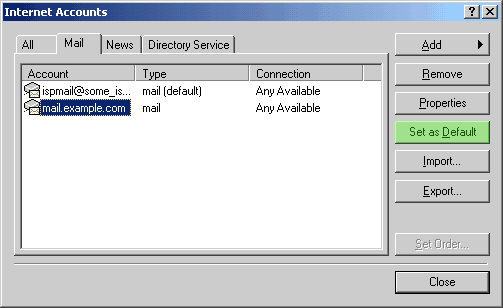
- Click on Tools from the Outlook Express toolbar, and then on "Accounts..."
- First, we will set the new account as the default, so Outlook Express
will use it to send mail automatically.
- Then click on "Properties"
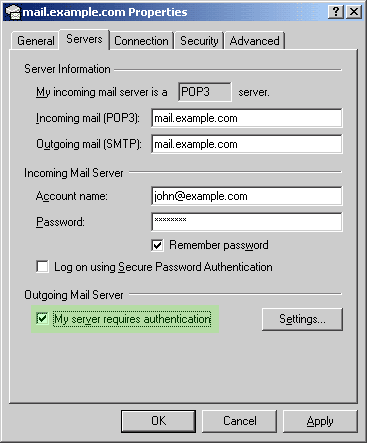
- In the Properties window, Servers tab, verify that
the servers are spelled correctly.
Make sure that My server requires Authentication
is checked! If it is not checked, you will not be able to send
any mail.
- Many ISPs block the default Outgoing SMTP port (25) on domains other than
their own. To avoid this difficulty, we highly recommend using port 465 with SSL enabled for your Outgoing Mail.
To change the Outgoing Mail port, click on the "Advanced" tab to show the port information.
The incoming port should also be changed from the default port (110) to 995 with SSL enabled.
NOTE: In order to keep from taking
up more space on the Web server than is needed, Un-Check the "Leave
a copy of messages on server" checkbox.
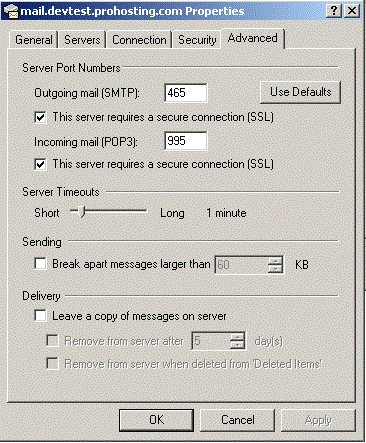
Once you have changed this, you should be able to send and receive
your mail freely.
- There are several other items of interest in the other tabs, but
they are personal preference, and will not be addressed by this tutorial.
You should explore them for yourself.
|
CALL
TOLL FREE: 866-566-HOST (4678)
ProHosting has hosted over 2,123,705 web sites since 1996!
|
|
|
|
|
|
|